Mobile Deployment - Android & HarmonyOS
Deploy General Bots as the primary interface on Android and HarmonyOS devices, transforming them into dedicated AI assistants.
Overview
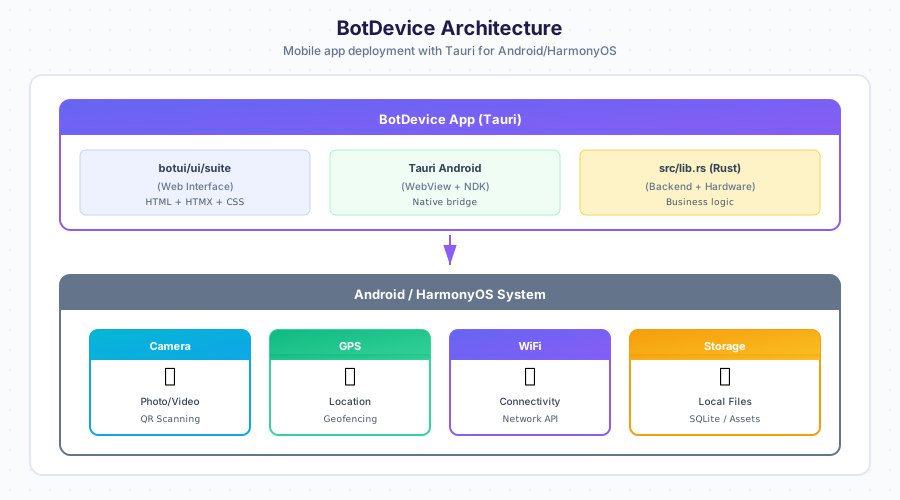
BotDevice transforms any Android or HarmonyOS device into a dedicated General Bots system, removing manufacturer bloatware and installing GB as the default launcher.
Supported Platforms
Android
- AOSP - Pure Android
- Samsung One UI - Galaxy devices
- Xiaomi MIUI - Mi, Redmi, Poco
- OPPO ColorOS - OPPO, OnePlus, Realme
- Vivo Funtouch/OriginOS
- Google Pixel
HarmonyOS
- Huawei - P series, Mate series, Nova
- Honor - Magic series, X series
Installation Levels
| Level | Requirements | What It Does |
|---|---|---|
| Level 1 | ADB only | Removes bloatware, installs BotDevice as app |
| Level 2 | Root + Magisk | GB boot animation, BotDevice as system app |
| Level 3 | Unlocked bootloader | Full Android replacement with BotDevice |
Quick Installation
Level 1: Debloat + App (No Root)
# Clone botdevice repository
git clone https://github.com/GeneralBots/botdevice.git
cd botdevice/rom

# Connect device via USB (enable USB debugging first)
./install.sh
The interactive installer will:
- Detect your device and manufacturer
- Remove bloatware automatically
- Install BotDevice APK
- Optionally set as default launcher
Level 2: Magisk Module (Root Required)
# Generate Magisk module
cd botdevice/rom/scripts
./build-magisk-module.sh

# Copy to device
adb push botdevice-magisk-v1.0.zip /sdcard/

# Install via Magisk app
# Magisk → Modules → + → Select ZIP → Reboot
This adds:
- Custom boot animation
- BotDevice as system app (privileged permissions)
- Debloat via overlay
Level 3: GSI (Full Replacement)
For advanced users with unlocked bootloader. See botdevice/rom/gsi/README.md.
Bloatware Removed
Samsung One UI
- Bixby, Samsung Pay, Samsung Pass
- Duplicate apps (Email, Calendar, Browser)
- AR Zone, Game Launcher
- Samsung Free, Samsung Global Goals
Huawei EMUI/HarmonyOS
- AppGallery, HiCloud, HiCar
- Huawei Browser, Music, Video
- Petal Maps, Petal Search
- AI Life, HiSuite
Honor MagicOS
- Honor Store, MagicRing
- Honor Browser, Music
Xiaomi MIUI
- MSA (analytics), Mi Apps
- GetApps, Mi Cloud
- Mi Browser, Mi Music
Universal (All Devices)
- Pre-installed Facebook, Instagram
- Pre-installed Netflix, Spotify
- Games like Candy Crush
- Carrier bloatware
Building from Source
Prerequisites
# Install Rust and Android targets
rustup target add aarch64-linux-android armv7-linux-androideabi

# Set up Android SDK/NDK
export ANDROID_HOME=$HOME/Android/Sdk
export NDK_HOME=$ANDROID_HOME/ndk/25.2.9519653

# Install Tauri CLI
cargo install tauri-cli

# For icons/boot animation
sudo apt install librsvg2-bin imagemagick
Build APK
cd botdevice

# Generate icons from SVG
./scripts/generate-icons.sh

# Initialize Android project
cargo tauri android init

# Build release APK
cargo tauri android build --release
Output: gen/android/app/build/outputs/apk/release/app-release.apk
Development Mode
# Connect device and run
cargo tauri android dev

# Watch logs
adb logcat -s BotDevice:*
Configuration
AndroidManifest.xml
BotDevice is configured as a launcher:
<intent-filter>
    <action android:name="android.intent.action.MAIN" />
    <category android:name="android.intent.category.HOME" />
    <category android:name="android.intent.category.DEFAULT" />
    <category android:name="android.intent.category.LAUNCHER" />
</intent-filter>
Permissions
Default capabilities in capabilities/default.json:
- Internet access
- Camera (for QR codes, photos)
- Location (GPS)
- Storage (files)
- Notifications
Connecting to Server
Edit the embedded URL in tauri.conf.json:
{
  "build": {
    "frontendDist": "../botui/ui/suite"
  }
}
Or configure botserver URL at runtime:
window.BOTSERVER_URL = "https://your-server.com";
Boot Animation
Create custom boot animation with GB branding:
# Generate animation
cd botdevice/scripts
./create-bootanimation.sh

# Install (requires root)
adb root
adb remount
adb push bootanimation.zip /system/media/
adb reboot
Project Structure
| Path | Description |
|---|---|
Cargo.toml | Rust/Tauri dependencies |
tauri.conf.json | Tauri config → botui/ui/suite |
build.rs | Build script |
src/lib.rs | Android entry point |
icons/gb-bot.svg | Source icon |
icons/icon.png | Main icon (512x512) |
icons/*/ic_launcher.png | Icons by density |
scripts/generate-icons.sh | Generate PNGs from SVG |
scripts/create-bootanimation.sh | Boot animation generator |
capabilities/default.json | Tauri permissions |
gen/android/ | Generated Android project |
rom/install.sh | Interactive installer |
rom/scripts/debloat.sh | Remove bloatware |
rom/scripts/build-magisk-module.sh | Magisk module builder |
rom/gsi/README.md | GSI instructions |
Offline Mode
BotDevice can work offline with local LLM:
- Install botserver on the device (see Local LLM)
- Configure to use localhost:
window.BOTSERVER_URL = "http://127.0.0.1:8088"; - Run llama.cpp with small model (TinyLlama on 4GB+ devices)
Use Cases
Dedicated Kiosk
- Retail product information
- Hotel check-in
- Restaurant ordering
- Museum guides
Enterprise Device
- Field service assistant
- Warehouse scanner with AI
- Delivery driver companion
- Healthcare bedside terminal
Consumer Device
- Elder-friendly phone
- Child-safe device
- Single-purpose assistant
- Smart home controller
Troubleshooting
App Won’t Install
# Enable installation from unknown sources
# Settings → Security → Unknown Sources

# Or use ADB
adb install -r botdevice.apk
Debloat Not Working
# Some packages require root
# Use Level 2 (Magisk) for complete removal

# Check which packages failed
adb shell pm list packages | grep <manufacturer>
Boot Loop After GSI
# Boot into recovery
# Wipe data/factory reset
# Reflash stock ROM
WebView Crashes
# Update Android System WebView
adb shell pm enable com.google.android.webview