Drive Integration
The drive component provides S3-compatible object storage for botserver, storing bot packages, documents, and user files.
Overview
botserver uses the drive component as its primary storage backend for bot packages in .gbai directories, knowledge base documents in .gbkb files, configuration files like config.csv, media and attachments, and user-uploaded content.
Configuration
Storage configuration is automatically managed by the Directory service (Zitadel), so you do not need to configure storage credentials manually. During bootstrap, the Directory service provisions storage credentials, distributes them securely to botserver, and handles credential rotation automatically.
Storage Structure
Bucket Organization
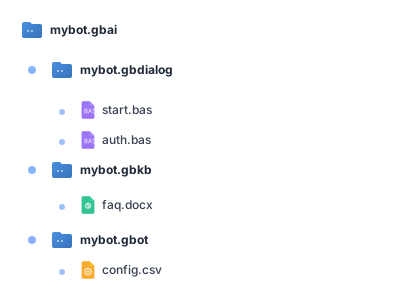
Each bot gets its own bucket named after the bot package. The bucket naming convention uses {bot-name}.gbai for bot buckets and botserver-media for the shared media bucket. Each bucket contains the complete bot package structure.
Features
Automatic Upload
When deploying a bot package, botserver automatically creates a bucket if it doesn’t exist, uploads all package files, maintains the directory structure, and preserves file permissions.
Real-time Synchronization
The bot monitors its bucket for changes. Configuration updates trigger automatic reload, new knowledge base files are indexed immediately, and deleted files are removed from the index automatically.
Drive Monitor
The DriveMonitor service watches for changes in drive storage. It detects configuration updates, triggers bot reloads when changes occur, and syncs the local cache with drive storage.
Bootstrap Integration
During bootstrap, botserver handles installation by downloading and installing the drive binary if not present, receiving credentials from the Directory service, creating data directories, and uploading template files to drive storage.
Knowledge base files are uploaded to drive buckets, indexed for vector search, and cached locally for improved performance.
The BASIC GET keyword can retrieve files from drive:
content = GET "knowledge.gbkb/document.pdf"
This retrieves files from the bot’s bucket in drive storage.
Media Handling
The multimedia handler uses drive for storing uploaded images, serving media files, managing attachments, and processing thumbnails.
Console Integration
The built-in console provides a file browser for drive with paths like /media/ for browsing uploaded media, /files/{bot}/ for browsing bot files, and /download/{bot}/{file} for downloading specific files.
S3-Compatible Client Configuration
botserver uses an S3-compatible client configured for the drive:
#![allow(unused)]
fn main() {
let config = S3Config::builder()
    .endpoint_url(&drive_endpoint)
    .region("us-east-1")  // Required but arbitrary for S3-compatible
    .force_path_style(true)
    .build();
}
The force_path_style(true) setting ensures compatibility with S3-compatible storage providers.
Deployment Modes
Local Mode
The default mode runs drive on the same machine. The binary is downloaded to {{BIN_PATH}}/drive, data is stored in {{DATA_PATH}}, and logs are written to {{LOGS_PATH}}/drive.log.
Container Mode (LXC)
Drive can run in an LXC container with mapped volumes for persistent storage:
lxc config device add default-drive data disk \
  source=/opt/gbo/data path=/opt/gbo/data
External S3-Compatible Storage
botserver can use existing S3-compatible infrastructure. The Directory service manages the connection and supports providers including MinIO (the default local installation), Backblaze B2, Wasabi, DigitalOcean Spaces, Cloudflare R2, and any other S3-compatible service.
To use external storage, configure it through the Directory service admin console.
Security
Credentials are managed by the Directory service for centralized security. TLS can be enabled for secure communication between components. Bucket policies control access on a per-bot basis, and credential rotation is handled automatically without service interruption.
Monitoring
The drive console runs on port 9001 as an optional management interface. The API endpoint runs on port 9000 for programmatic access. Health checks are available via /health/live and metrics can be scraped from /metrics.
Troubleshooting
Check Drive Status
The package manager monitors drive status using:
ps -ef | grep drive | grep -v grep
Console Access
The drive console is available at http://localhost:9001 for bucket management, user management, policy configuration, and access log review.
Common Issues
Connection failures typically indicate that drive is not running or ports are not accessible. Access denied errors suggest the Directory service has not yet provisioned credentials. Bucket not found errors occur when bot deployment did not complete successfully. Upload failures often result from insufficient disk space or incorrect permissions.
Debug Logging
Enable trace logging to see drive operations:
RUST_LOG=trace ./botserver
This reveals file retrieval details, bucket operations, and authentication attempts.
Best Practices
Back up the drive data directory regularly to prevent data loss. Monitor disk usage to ensure adequate storage space remains available. Use bucket policies to restrict access appropriately for each bot. Enable object versioning for critical data that may need recovery. Configure lifecycle policies for automatic cleanup of old files that are no longer needed.
See Also
The Storage API chapter provides the complete API reference for drive operations. The Environment Variables appendix covers Directory service configuration options. The LXC Containers documentation explains container deployment in detail.